

Question

Restricting "Published Content?"

  • July 30, 2025
  • 4 replies
  • 44 views

Currently all of our authors can see the “Published Content” in the portal; however, some of this training should not be shared. 


How do we restrict access to the “Published Content” tab? 


Thanks for the assistance!

4 replies

Plami
Community Manager
Forum|alt.badge.img
  • Customer Support Lead
  • July 31, 2025

Hi ​@JulieHood 

Thank you for reaching out to the ClickLearn Community!

To restrict viewing access to the "Published Content" tab, you will need to configure Permission Definitions within the ClickLearn Admin Portal or directly within ClickLearn Studio. This allows you to control who can view specific content based on domain, user groups, or access levels.

While the "Published Content" section displays all content published within your organization, permission rules must be applied manually to ensure that only specific users or groups can access certain outputs.

These guides will show you how to apply structure and control access to your published content.

Published content

Permission definition


If you have any questions or need further help, please feel free to let us know!

Best regards,


  • Author
  • Explorer
  • August 5, 2025

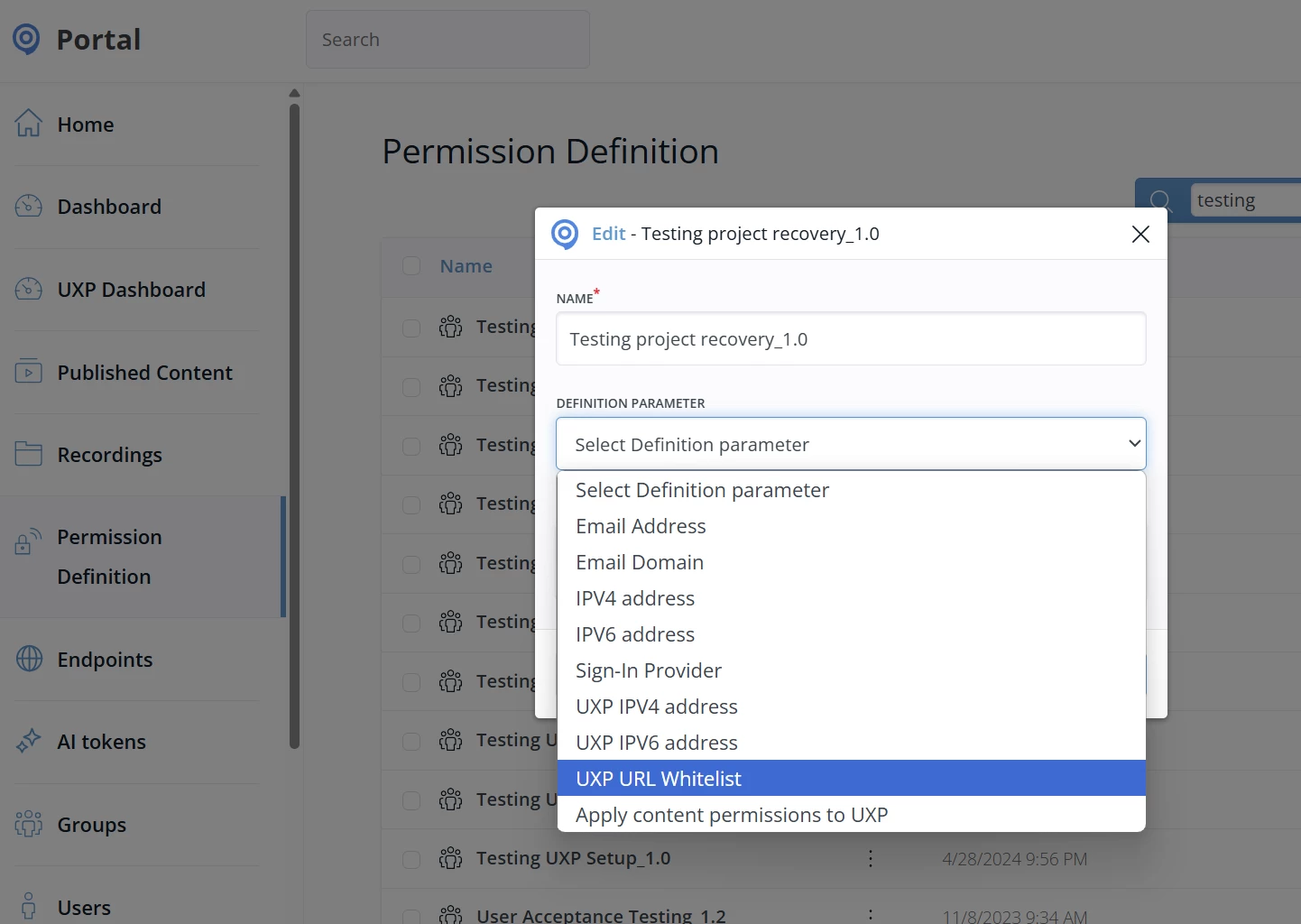
Thanks Plami for pointing me in the right direction. I did not have the “Click on the input field URL Whitelist” mentioned in the Permission definition (in case someone wants to update that training).

We ended up adding email addresses of authors who should NOT see the content and turning the ALLOW slider off. That seems to restrict access.


Plami
Community Manager
Forum|alt.badge.img
  • Customer Support Lead
  • August 5, 2025

Hi ​@JulieHood

Thanks for the update. 
Perhaps you were not inside the right section? When you are in your Admin Portal and go to ‘Permission Definition’ you locate the desired project you want to restrict the access and press the 3 dots and a pop up appears with the option to Edit or Delete. When you click Edit you get the option to define the parameter and select UXP URL Whitelist. 

If you are still not able to see it, please contact us at support@clicklearn.com and the team will look into why this is happening. 

Best regards, 


  • Author
  • Explorer
  • August 5, 2025

Yes, my list stops at Sign-In Provider. I’ll follow up with Support. Thanks!